Basement Design Software
Create accurate 2D and 3D basement layouts fast with an online basement design tool built for contractors and designers like you.
Design Finished Basement Layouts Online in Half the Time
Knowing how to design a basement is only half the battle. As a busy professional, you need a basement design planner to help you do it as quickly as possible.
Here’s how to design a basement with Cedreo.
Import the Floor Plan & Add a Basement Level
Start with the right floor plan structure so your basement layout matches the home and the staircase lands where it should.
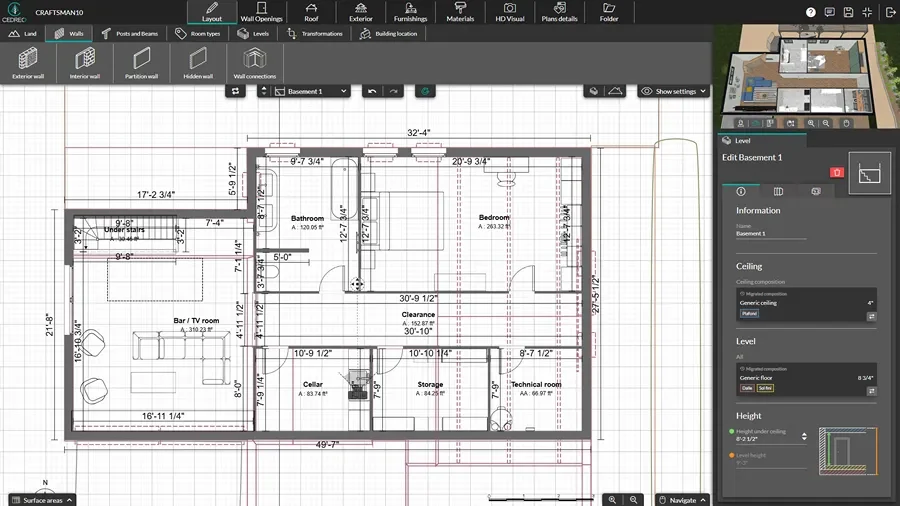
- Import the existing floor plan (PDF, PNG, JPEG, DWG, or DXF) and trace over it.
- Use the levels tool to add a basement level and duplicate the exterior walls from the ground level in just 1 click.
- Adjust the slab and ceiling thickness as well as the basement ceiling height.
- Draw interior walls, then add a stairwell opening, stairs, doors and other wall openings to complete the floor plan.
Choose Materials, Furnishings & Decor
Add the right details to test layout flow and show homeowners how the finished basement design will actually feel.
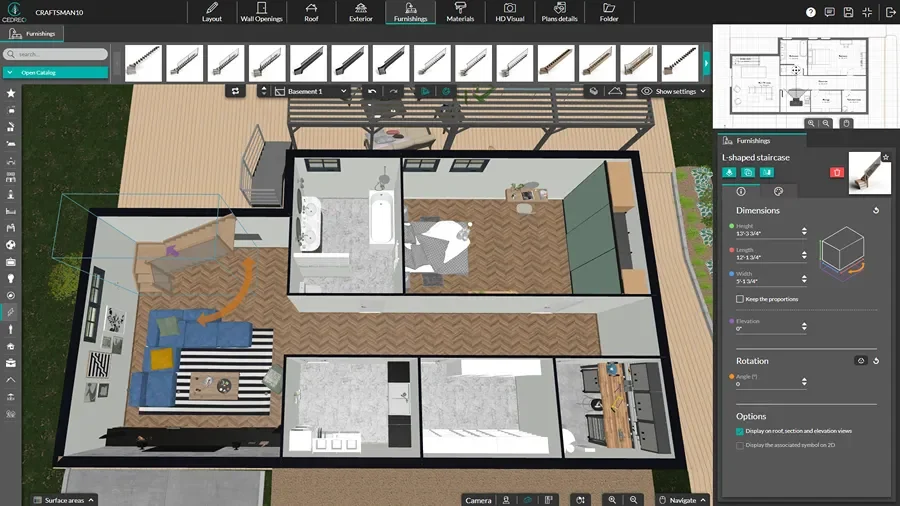
- In the Materials tab, use drag and drop tools to add flooring, wall coverings, and other materials to surfaces.
- Choose from thousands of pieces of furniture in a variety of styles to customize the basement.
- Drag, drop, and customize lighting, fixtures, and decorations to finish the space.
Generate 3D Renderings
Bring the basement design to life so clients can approve faster and you can reduce back-and-forth revisions.
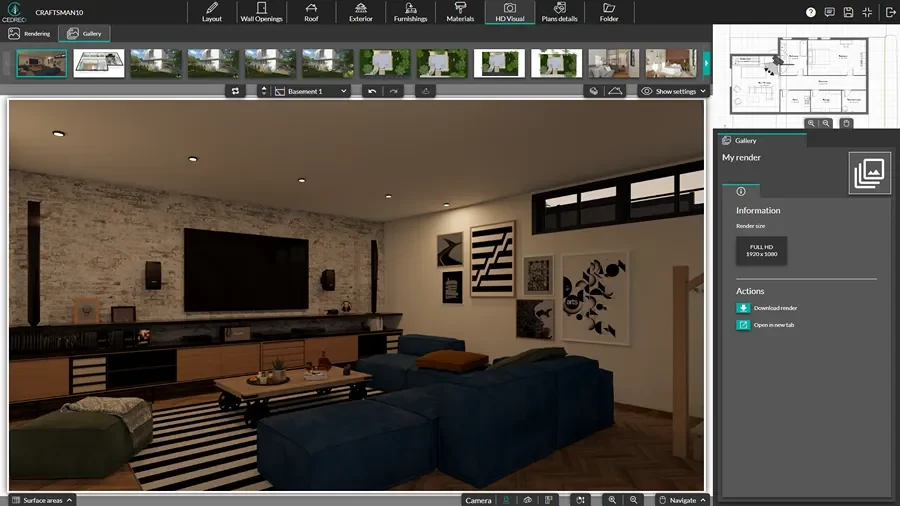
- Adjust lighting and sun orientation to show how natural light enters through windows in a finished basement.
- Choose a camera point of view and save it to use later if you make changes.
- Request a rendering and it’s ready in just 5 minutes.
- Add renderings to branded project presentations that get faster approvals.
Complete 2D Basement Layouts
Cedreo’s basement design planner helps home builders, remodelers, and interior designers create professional 2D basement layouts in a fraction of the time it takes with most other basement design tools.
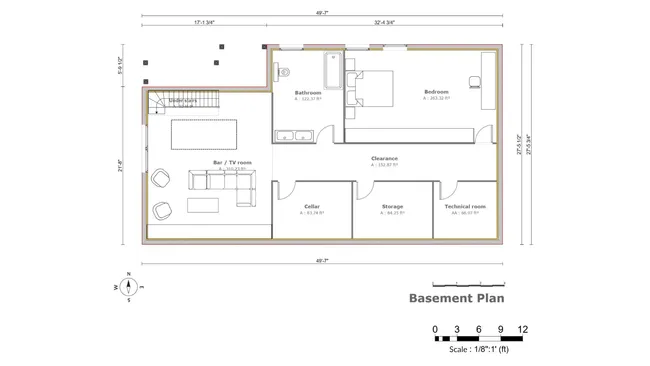
- Dimensions and room areas: Use partition and invisible walls to define each room, then see automatic dimensions and surface area calculations for each, and add custom dimensions where needed.
- Clear layout symbols: Add plan symbols for furniture, stairs, cabinets, and fixtures so the drawing is easy to read at a glance.
- All types of plans: Create electrical plans with outlets, switches, and lighting as well as cross sections for vertical details.
- Easy updates: Make changes quickly with click and drag tools that automatically resize rooms to keep the floor plan accurate without redrawing everything.
3D Basement Floor Plans for Perspective
A 3D basement plan shows the space from a top-down perspective, along with colors, fixtures, and materials. This helps clients visualize how the space will function in real life so they trust your designs faster.
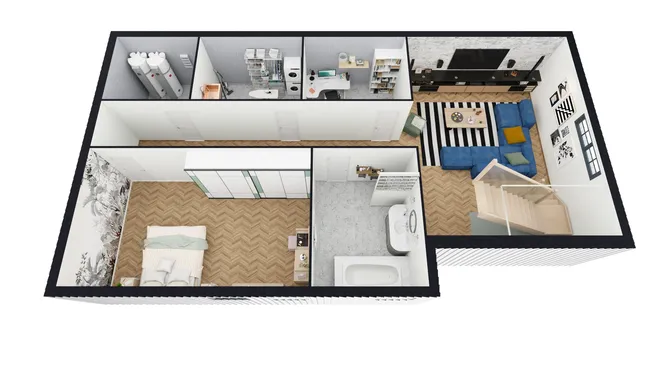
- Instant visualization: See the basement layout in 3D as you draw in 2D, so you can validate flow right away.
- Quick design variations: Swap furniture layouts and material choices in seconds, so clients can compare options and choose faster.
- Rotate and zoom views: Spin the model and zoom in or out to view the basement from different angles and confirm how the space feels.
Photorealistic Basement Visualizations
Photorealistic renderings help homeowners feel an emotional connection to the finished basement plan so they say “yes” with more confidence.
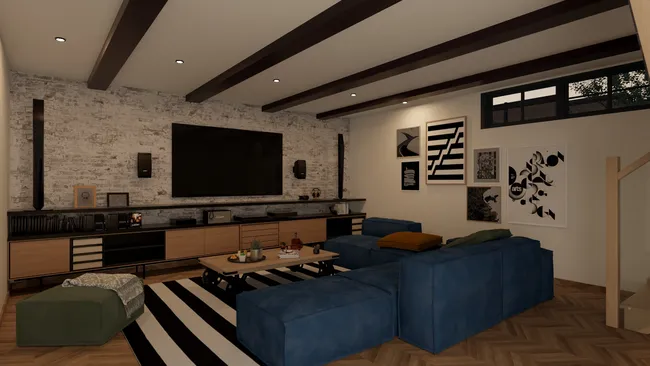
- Realistic lighting: Since nobody likes dark basements, Cedreo gives you the power to show clients exactly how natural and artificial lighting will look.
- Stunning, life-like detail: High-quality interior visuals show realistic materials, textures, shadows, and finishing touches.
- Camera angles: Capture the wet bar, entertainment zones, or a home theater from angles that help clients understand the space.
- Final touches: Show the basement with wall art, rugs, bookshelves, and accessories so the space feels lived in.
Top Basement Designer Features
Cedreo combines precision tools with an easy workflow, so you can design, present, and get sign-off faster.
Add a Basement Level in One Click
Create a basement level fast and keep it aligned with the floors above, which is key for stairs and stacked walls.
Create a Walkout Basement
Design exterior access by placing doors at the basement level, then pair that layout with site and terrain planning for walkout concepts.
Build Before and After Comparisons
Save views to show the existing basement plan next to the new finished basement design, so clients can see the transformation.
Large Design Catalog
Choose from an extensive library of customizable materials, doors, windows, furniture, decor, and accessories to match any style.
World-Class Customer Support
Instead of generic contact forms that delay your projects, call, chat, or email for fast help from real people who help your projects stay on track.
Easy to Learn
An intuitive workflow helps you create 3D basement plans quickly, even if you have never used CAD or 3D modeling software.
Real Basement Designs Made With Cedreo
From walkout basements to multi-bedroom layouts, any basement design your client can dream up is possible with Cedreo’s basement design software. Take a look at a few of the basements designed with Cedreo.
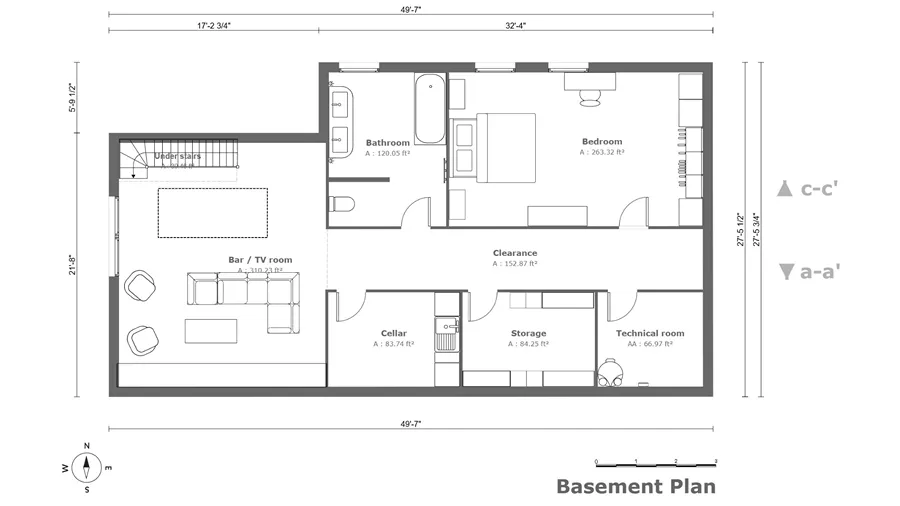
2D plan with storage rooms
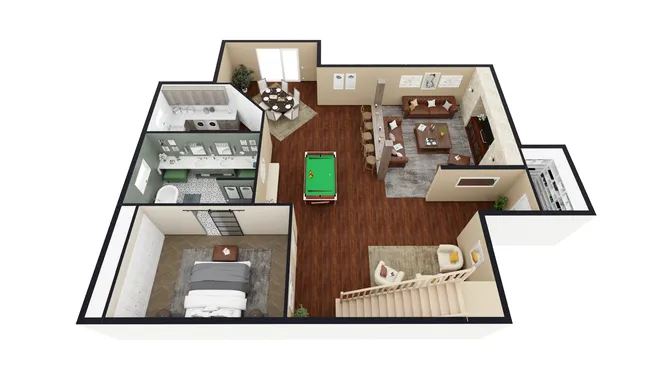
3D basement guest suite
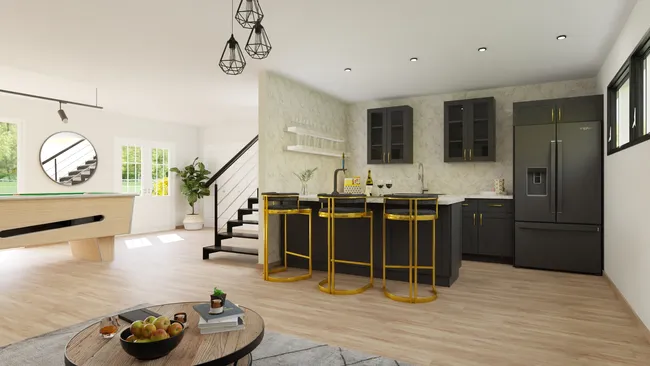
Wet bar with sink rendering
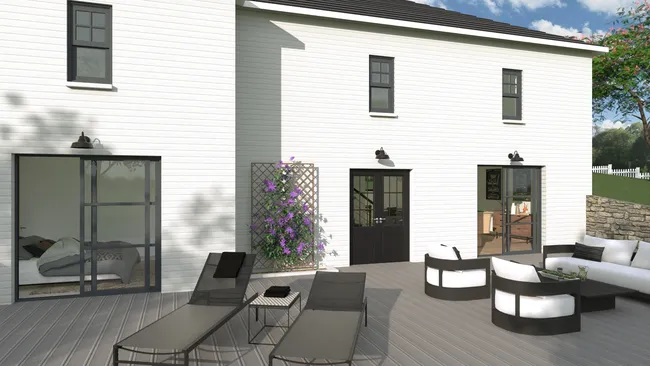
Walkout basement with windows
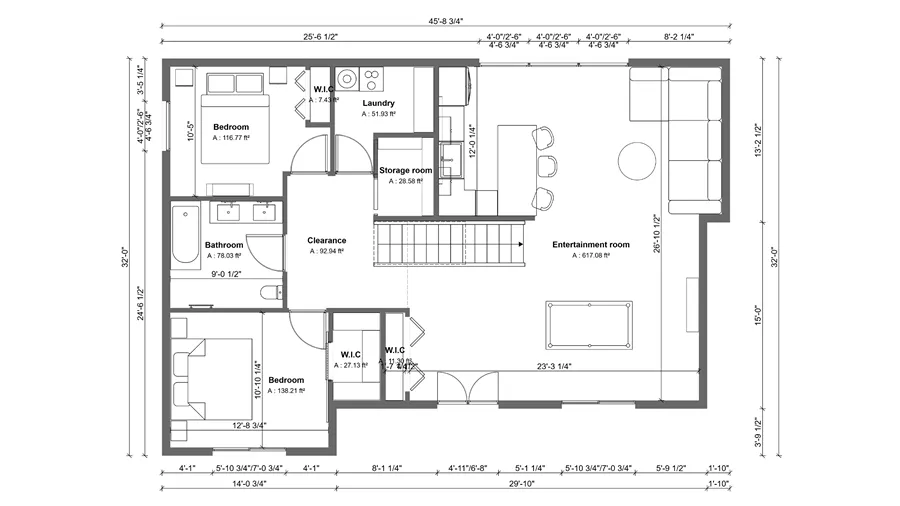
2D basement plan with dimensions
3D view of storage units & bookshelves
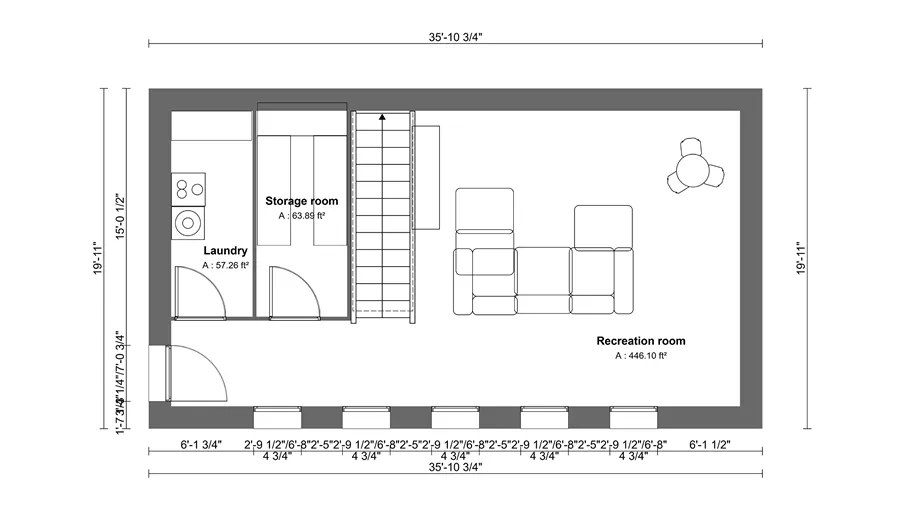
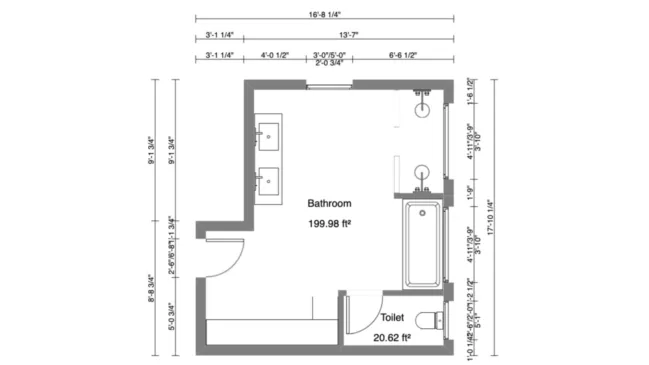
2D basement laundry room
Home theater rendering
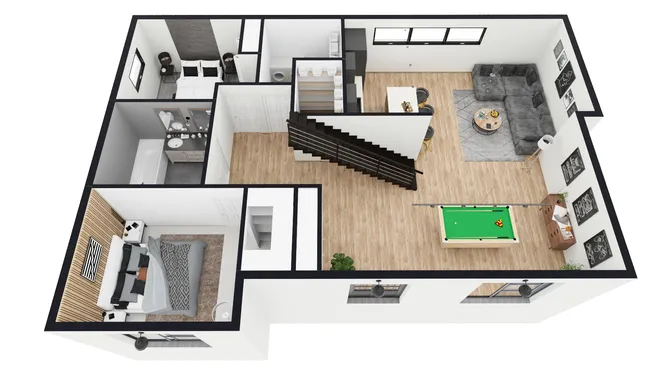
3D layout with entertainment zones
It’s easy to use.
But you can always count on Cedreo support.
For an even faster start, access tutorials and help articles.
Get tips to do more, faster.
“It produces strong renderings in 3D easy for a client to capture the essence of the design being proposed. The emphasis is on providing practical and effective tools for the conceptual design stage.”
Basement Layout Planner FAQs
The best basement design software lets you create a basement floor plan quickly and then visualize the finished basement layout in 3D.
More pros are choosing Cedreo, since it combines 2D plans, 3D floor plans, and photorealistic renderings in one workflow.
Yes, duplicating the main floor can speed up a basement plan because the footprint and key walls stay aligned.
With Cedreo, you can do this with a single click.
Add the basement level first, then model the terrain so it slopes down where needed and exposes the basement on the walkout side.
Next, add exterior doors, windows, and a patio on the basement level to complete the exterior access.
Plan the basement layout by fixing the staircase location and major constraints (like foundation walls first, then dividing the space into specific rooms.
After that, add furniture and tweak dimensions until circulation feels right.
Yes, with Cedreo, you can customize the basement ceiling and then plan around ceiling height limits by checking clearances and furniture fit in 3D.
This helps you avoid layout problems before construction.
Add the stairwell opening to the floor between the two levels.
Then select a staircase from the furnishings tab and add it to the appropriate level at the location of the stairwell.
It depends on project size and detail, but a clear workflow can produce a full basement design much faster than traditional CAD.
With Cedreo, you can move from idea to a 2D basement plan to 3D visuals in about 2 hours or less.
Yes, you can place windows and adjust sun orientation to show how natural light enters the basement.
This makes it easier to sell a finished basement design that feels bright.
You usually need the structure and key elements like exterior walls and stairs so the basement lines up correctly.
You do not need to fully draw and furnish every upper room to start a basement layout.
Yes, multi-use basement design works well when you plan zones and furniture layouts first, then add walls only where privacy matters.
In Cedreo you can still add invisible walls to create color coded zones or areas with different types of flooring while still keeping the space open.