Floor Plan to 3D Model Converter: Draw in 2D, See in 3D Instantly
Draw in 2D and see the 3D model build itself in real time. No static 3D images you can’t edit, no AI hallucinating walls that aren’t there… just an editable 3D floor plan you can keep refining.
How To Convert 2D Floor Plans to 3D With Cedreo
Cedreo converts any 2D floor plan to 3D automatically. Import an existing plan or draw from scratch, and the 3D model builds itself in real time as you work. Instead of static AI images you can’t edit, Cedreo uses a drawing engine to produce an editable 3D model. That means you get a complete 2D floor plan to 3D model workflow in a single tool built for contractors and remodelers.
Here’s how to do it.
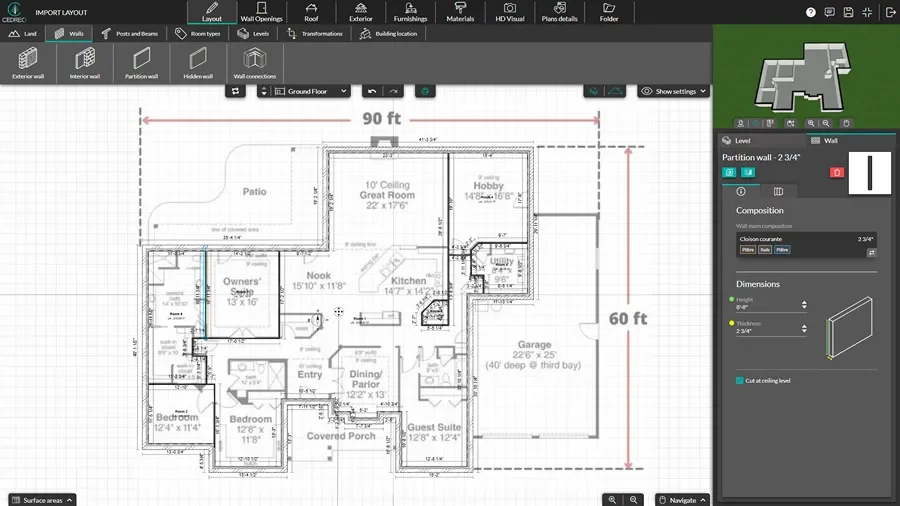
Import or Draw 2D Plans
Start with an accurate 2D layout, since this affects every step that follows.
- Import a PDF, PNG, DWG, or DXF as an underlay and set the scale from a known measurement.
- Trace exterior and interior walls with the wall tool, and snap corners to keep lines clean.
- Place doors, windows, and stairs from the library, then adjust sizes to get exact dimensions and positions.
- Check the real-time 3D drawing window to see the 3D model take shape as you draw in 2D
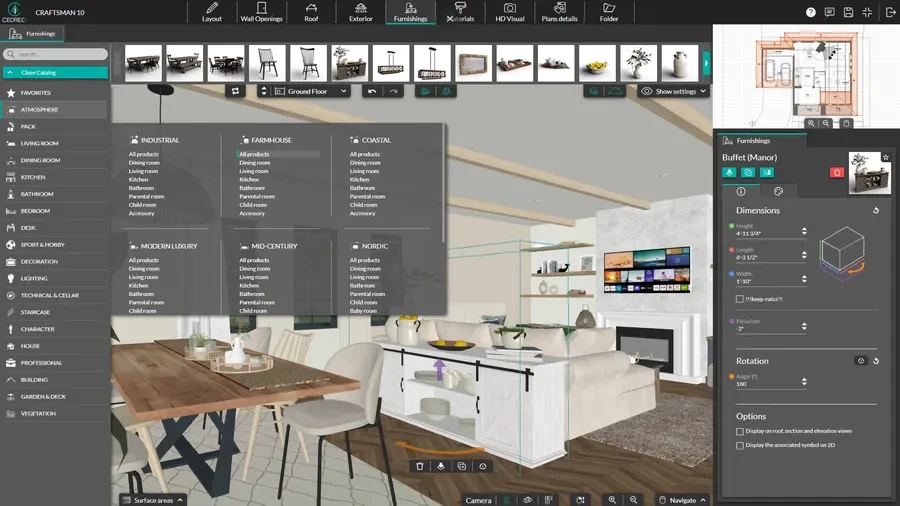
Add 3D Furnishings & Materials
An empty room isn’t very inspiring. But show your clients a 3D view of a fully furnished room and watch how they get excited about the project.
- Drag and drop furniture, fixtures, and decor from the extensive 3D design library.
- Apply materials to floors, walls, and surfaces to match the selected finishes.
- Rotate, resize, and customize objects using the properties panel.
- Add exterior elements like patios or decks.
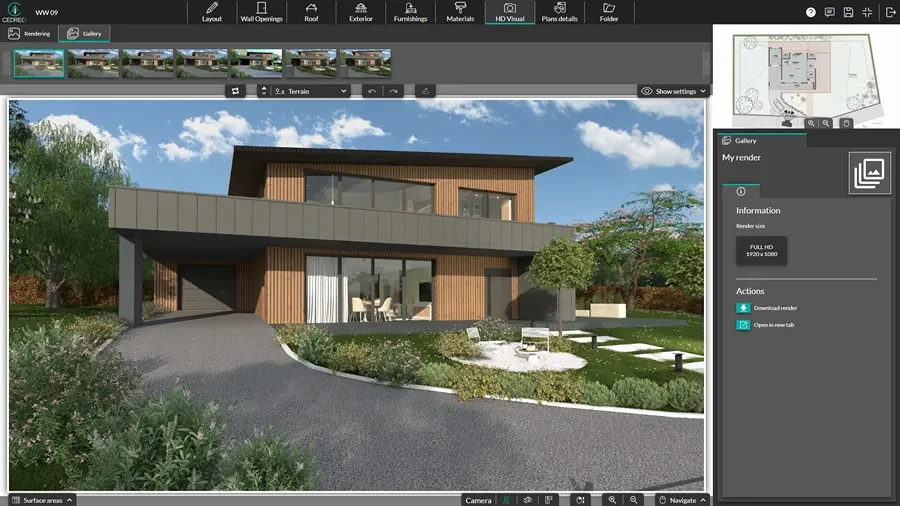
Generate 3D Views
Turn your floor plan design into clear 3D visuals you can share in proposals and presentations.
- Switch to 3D top view or isometric view to review the full layout from multiple angles.
- Use automatic mode to instantly get the best camera angles and sunlight setup, with no manual configuration needed.
- Run two renderings at the same time to cut wait time in half and get client-ready visuals faster.
- Download the 3D floor plans and renderings for easy sharing.
From 2D House Plan to 3D Model
Whether you’re converting an existing 2D house plan to 3D or starting fresh, Cedreo handles both. Either way you can draw an accurate 2D floor plan in minutes to lock in the layout. Cedreo’s drawing engine automatically creates a 3D model as you work.
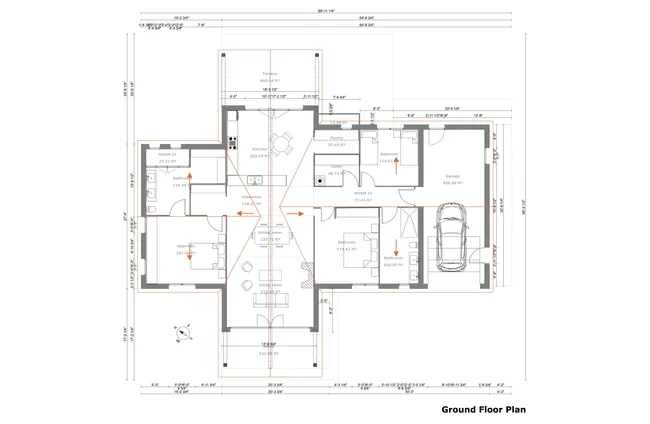
- Exact dimensions: Automatic dimensions and room area calculations update as you draw, so you always have up-to-date figures without tons of manual math.
- Clear room layouts: Room labels, notes, and clean symbols keep the plan readable for clients, trades, and internal handoffs.
- Auto-updating presentations: Insert house plans into Cedreo presentation documents, and they automatically update in the document whenever the design changes.
- Download and print: Produce clean, to-scale PDFs or DXFs and images that work for jobsite binders and client reviews.
To Fully Furnished 3D Floor Plans
The jump from a flat 2D plan to a 3D model removes the guesswork and brings the plans to life so your clients can visualize the end product. This translates to higher conversion rates for builders, remodelers, and designers like you.
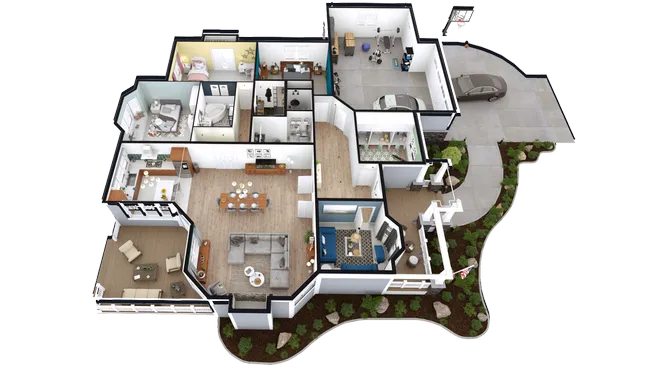
- Instant clarity, fewer errors: Seeing room volumes in 3D makes scale obvious and flags tight passages, bad door swings, and awkward traffic paths early.
- Better decisions: Use the 3D view to sanity-check how rooms connect, how ceiling heights and openings read, and how the plan feels in motion.
- Fast design variations: Swap finishes, adjust materials, or move furniture around on the fly to compare options before anyone starts building.
- More control, more confidence: Instead of asking AI tools to make edits to a static image and hoping they get it right, you have real control over virtually every aspect of the 3D model.
And Photorealistic 3D Renderings
3D photorealistic renderings that let clients visualize the property help you avoid miscommunications and answer a lot of your client’s questions. This helps you close more deals since clients feel more confident about moving ahead with the project.
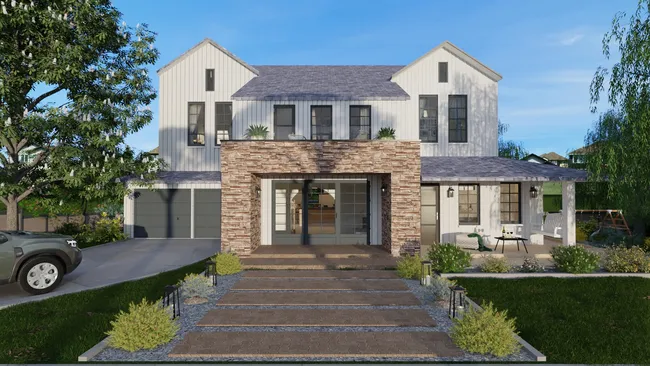
- Design detail: Showcase the decisions that sell the project, including cabinetry, tile, trim, flooring, and exterior materials.
- Automatic rendering mode: Get polished, client-ready visuals every time without spending time on manual camera or lighting setup.
- Sales-ready visuals you can share: Use photo-like images in proposals, design reviews, and client presentations, then drop them into emails and approval decks to keep everyone aligned.
Top Features of This 2D to 3D House Plan Converter
Cedreo is jam-packed with features to easily create detailed 2D plans and convert to 3D.
Real-Time 2D Plan to 3D Converter
As you create your 2D plans, you simultaneously see the 3D floor plans in the 3D visualization window.
Switch from 2D to 3D In 1 Click
Jump between 2D floor plans and full-screen 3D views in a single click so you can seamlessly adjust layouts and add 3D objects.
Import Floor Plan Files: JPG, PDF, DWG, DXF, PNG
Upload floor plans and trace over them so you know the 3D model is created from an accurate and precise starting point.
Download Plans & 3D Visuals
Export 2D plans to scale in JPG or DXF format, select 150 dpi or 300 dpi quality, and download 3D floor plan views and renderings in JPG.
World Class Support
Stop relying on generic contact forms and user forums. Call, chat, or email a dedicated success manager for fast help.
Intuitive & Easy-to-Learn
Skip the steep learning curve with simple, intuitive controls built for contractors, remodelers, and interior designers who need results fast.
Examples of Floor Plan to 3D Model Conversions Done With Cedreo
Stop guessing how the final project will look thanks to Cedreo’s lifelike 3D images. Check out some real examples of 2D to 3D floor plan conversions done with Cedreo. Then start using Cedreo today so you can create 3D plans like these that will help you close more deals.
Below are 3 projects created with Cedreo, showcasing the design process from 2D floor plans to 3D conversion as well as a final rendering.
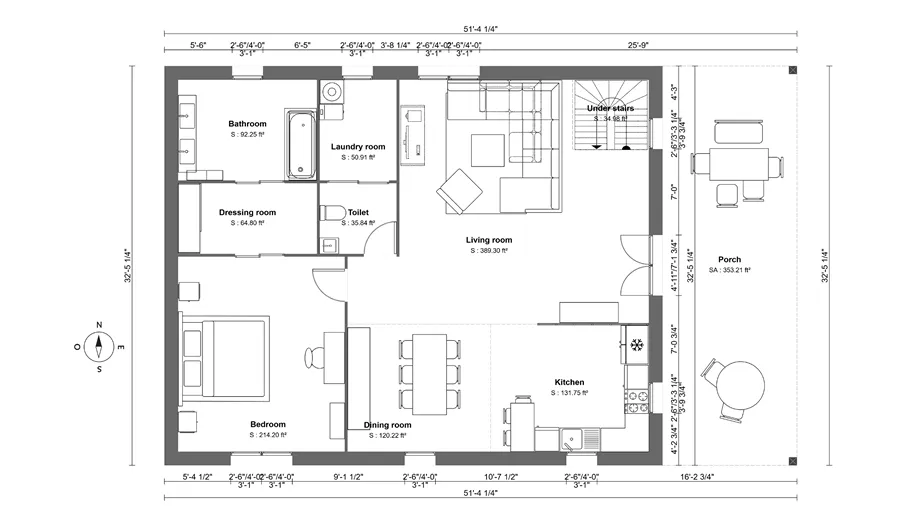
2D floor plan
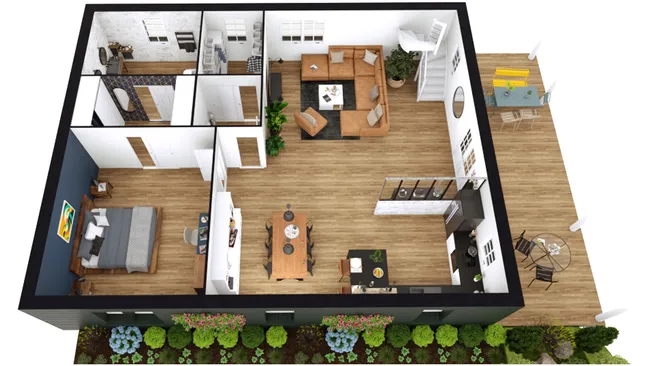
3D floor plan

3D rendering
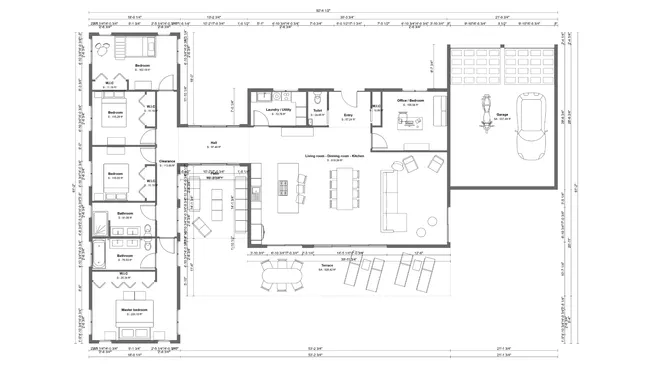
2D floor plan
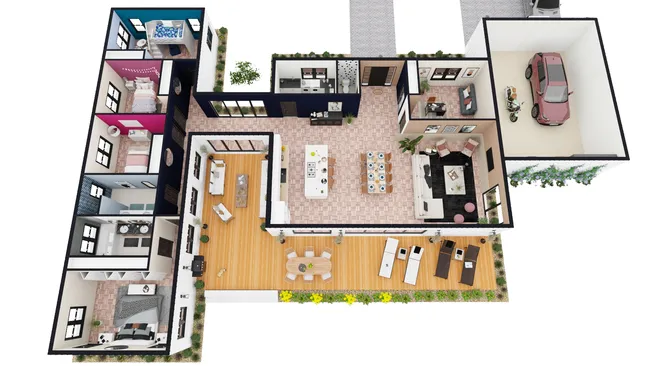
3D floor plan

3D rendering
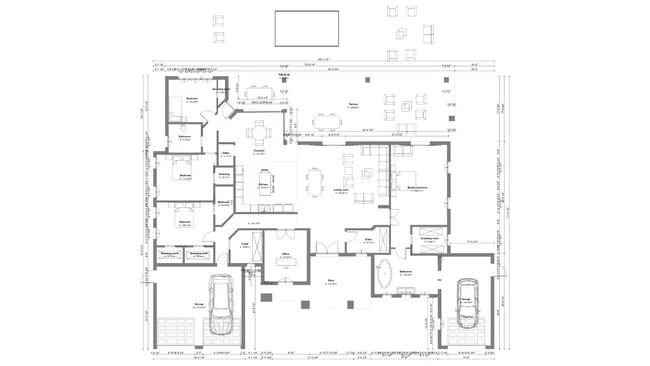
2D floor plan
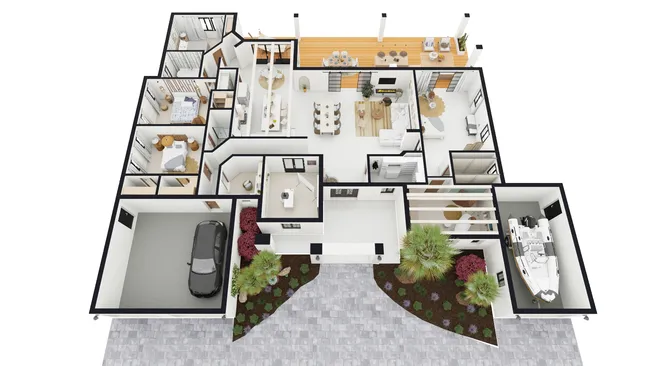
3D floor plan

3D rendering
It’s easy to use.
But you can always count on Cedreo support.
For an even faster start, access tutorials and help articles.
Get tips to do more, faster.
“Finally! A 3D home designer I can actually work and use!”
Cedreo is so easy to view in 3D, navigate around in the space, and to create a house in hours, not weeks.
Converting 2D Floor Plans to 3D FAQs
Converting 2D floor plans to 3D is simple with Cedreo, but here are some answers to frequently asked questions about converting floor plans.
How long does it take to convert a 2D floor plan with exact dimensions to 3D?
With Cedreo your 3D view comes to life simultaneously as you draw in 2D.
There’s no separate conversion step or wait.
Do I need additional plugins to generate 3D visualizations of my floor plans?
No, Cedreo includes everything you need in one software interface.
You can draw 2D floor plans, design and furnish 3D floor plans, and generate 3D renderings all in one place, while some other programs need add-ons or external rendering software.
Does the 3D model update automatically when I edit the 2D plan?
Yes. Cedreo generates the 3D model automatically through its drawing engine (not AI image recognition) so the model is editable and updates in real time with every change you make in 2D.
Then you can use the automatic rendering tool to generate photorealistic 3D images with just 3 clicks and zero technical knowledge.
Can I use Cedreo as a 2D to 3D house plan converter for client presentations?
Yes. Because Cedreo produces an editable 3D model (not a static image like AI tools), so you can keep refining the project for client presentations, client meetings, design reviews, and marketing materials,
3D floor plans, and professional presentation quality documents are all generated in the same tool for each project.
How to convert a 2D plan to 3D?
To convert a 2D floor plan to 3D, use specialized software like Cedreo that generates 3D models from your 2D layouts.
Simply import or draw your 2D floor plan, and the software instantly visualizes it in 3D.
You can modify the design, add doors and windows, apply materials and furnishing, then generate a professionally rendered 3D floor plan.
Do I need CAD experience to convert 2D plans to 3D?
No, Cedreo is user-friendly design software for beginners and professionals, and you can create your own floor plan without CAD training.
What file formats can I import for 2D to 3D conversion in Cedreo?
Upload a PNG, JPEG, PDF, DWG, or DXF file as a template and trace it to build your own floor plan.
The 2D to 3D house plan converter creates an editable 3D model automatically so you can view and download 3D plans to share with users in the office or on site.
What’s included in a 3D floor plan conversion…just walls or furniture too?
Your 2D floor plan becomes an editable 3D model with walls, floor surfaces, and openings, and then you can add furniture, kitchen cabinets, and other design elements.
This helps you visualize the space and interior design style before decisions are final.
Can I generate photorealistic renderings after converting to 3D?
Yes, once you draw the house plan, you can create photorealistic renderings that show interior design choices and exterior style.
Is the 3D conversion automatic or do I need to manually build it?
It is automatic. The 3D model updates automatically as you draw with no AI image recognition or upload queue..
And you still have the freedom to adjust details and advanced features like materials to match the design.
Can I make changes to the 3D floor plan after conversion?
Yes, unlike most AI 2D to 3D floor plan converters, you can edit in 2D or 3D and the model updates right away.
This makes Cedreo the right software to quickly explore design options and furniture placement.
Is there an app to convert a 2D house plan to 3D?
Yes. Cedreo is a cloud-based tool, so you can access the software from a web browser without needing to install software.
Draw house plans from scratch or upload and trace a floor plan and the software automatically creates an editable 3D model you can export as 3D floor plans or a photorealistic image.
Do AI 2D floor plan to 3D image converters work?
AI floor plan to 3D image converters can generate a quick visual preview, but the output is typically a static rendered image you can’t edit.
That limits their use for housing professionals who need to refine the design, swap finishes, or share editable plans for client presentations and marketing materials.
What’s the difference between Cedreo and AI tools for converting 2D floor plans to 3D?
Cedreo uses a drawing engine to build an editable 3D model in real time from your 2D plan.
Most AI tools use image recognition and generation to produce a static 3D image you can’t modify and isn’t always accurate.